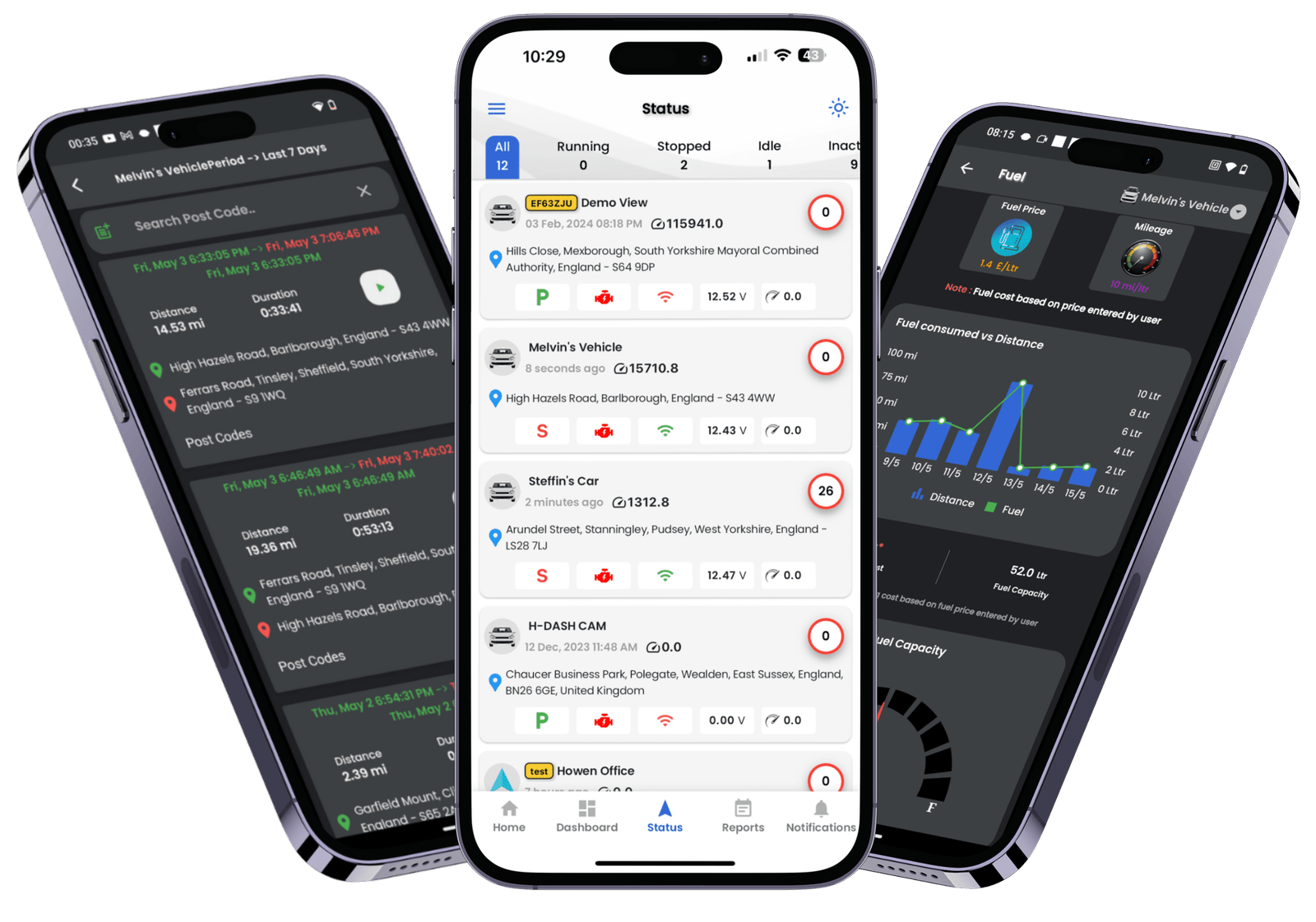
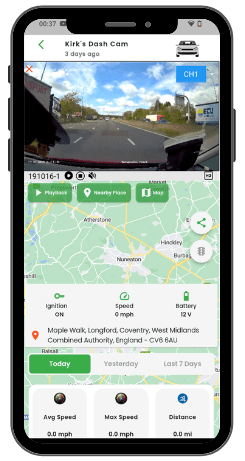
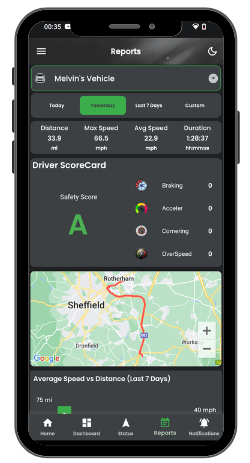
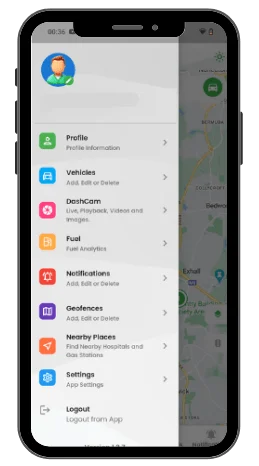
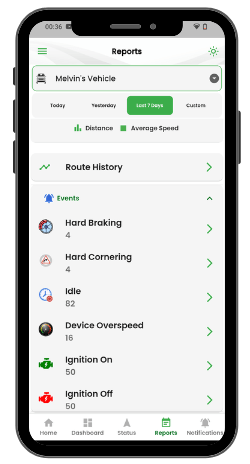
Discover the simplicity and efficiency of our Autosecureshop Fleet Tracking System right here. This page is designed to enhance your user experience by helping you understand our platform in detail.
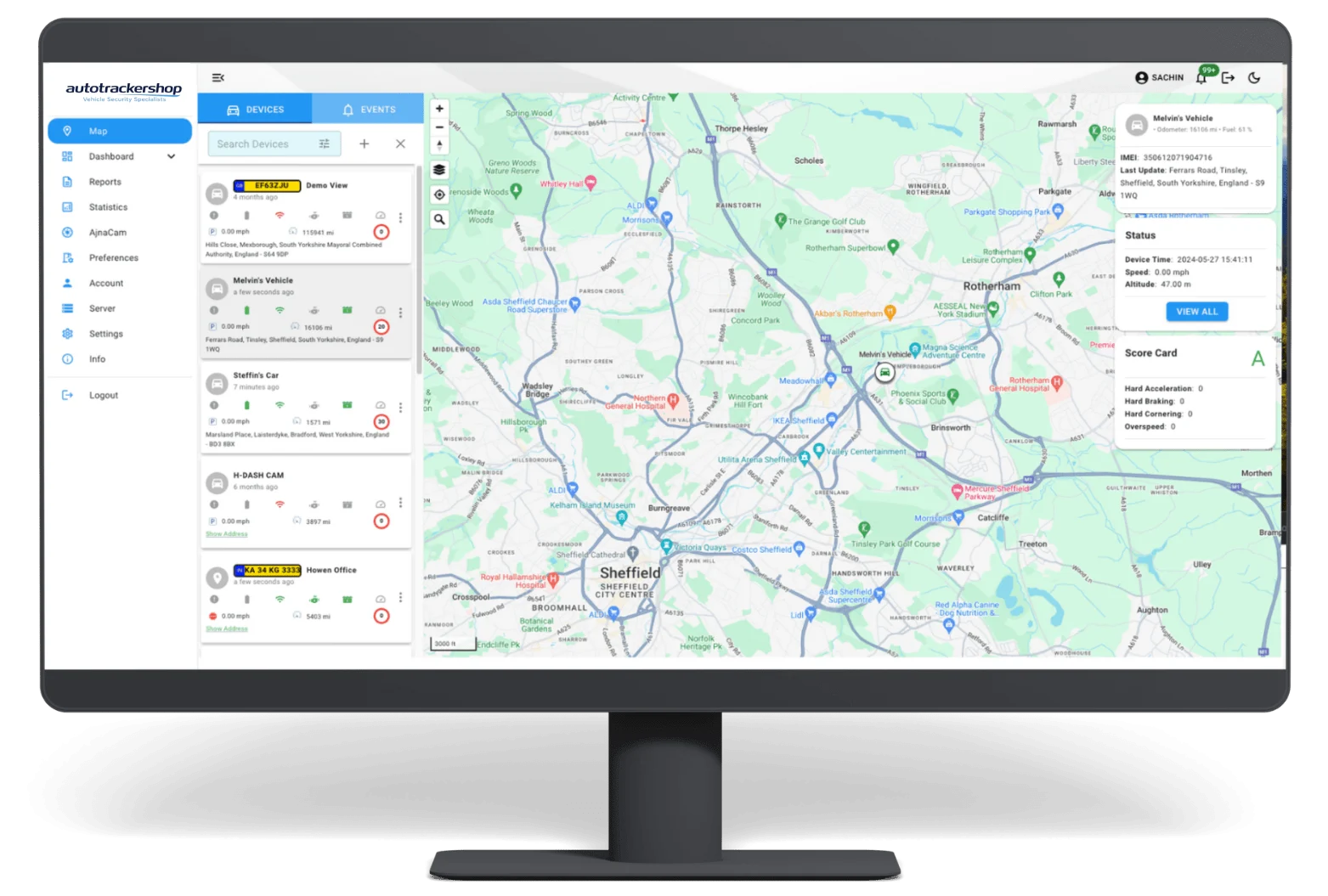
To understand how it works, once you log in, you’ll see a comprehensive view of the fleet tracking panel. The dashboard is organised into different sections, making it easy to identify key features and navigate through the system without confusion.
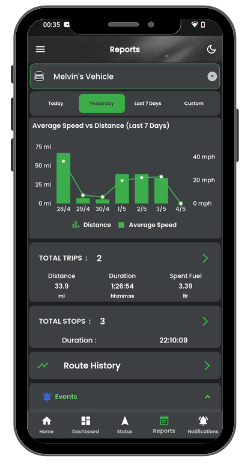
A key part of how it works is the ROUTE PLAYBACK feature. This function instantly displays the day’s travel history on your screen, allowing you to monitor routes with accuracy. You can also define specific parameters, such as date and time, to get precise tracking results.
Understanding how it works enables better fleet management by offering real-time insights, improved route visibility, and efficient monitoring, all within a user-friendly GPS tracking panel.
Exploring the Left Side of Our GPS Tracking Panel
On the left side of our Tracking Panel, we’ve highlighted items 1 to 11 to help you understand each data point. This detailed breakdown ensures you can easily navigate and utilize the full potential of our fleet tracking system. Unlock the power of precise data insights to optimize your fleet management today!
Key Features of Our GPS Tracking Panel
Vehicle Icon
This is the icon selected for the vehicle from the tracker settings menu, allowing easy identification
Tracker Name
This is the custom name chosen for the vehicle from the tracker settings menu.
Last GPS Position
Displays the date and time of the last GPS position recorded.
Last Data Transmission
Lorem ipsum dolor sit amet, consectetur adipiscing elit.
Driving Hours/Mileage
Updates every 4 hours to show the driving hours or mileage of the vehicle.
Vehicle Voltage
Indicates the current voltage of the vehicle.
24-Hour Activity
Displays general activity for the 24-hour period from 00:00 to 23:59.
Motion Alerts
Notifies the user via push alert to their smartphone when the vehicle moves.
GPS Signal:
Indicates that the GPS unit has a strong signal.
Current Address
Shows the address derived from the longitude and latitude of the last GPS fix.
Vehicle Status
Displays whether the vehicle is moving and its current speed
Navigating the Top Menus of Our GPS Tracking Panel
Discover the functionality and ease of use provided by the top menus of our GPS Tracking Panel. These menus are designed to enhance your fleet management experience by offering quick access to essential features and settings. Explore how these intuitive controls can streamline your operations and optimize your fleet’s performance